
Getting started
Install and open
Download sugusearch from the home page and run the installer. On Windows, if a blue "Windows protected your PC" box pops up, click More info, then Run anyway. (Here's why it shows up.)
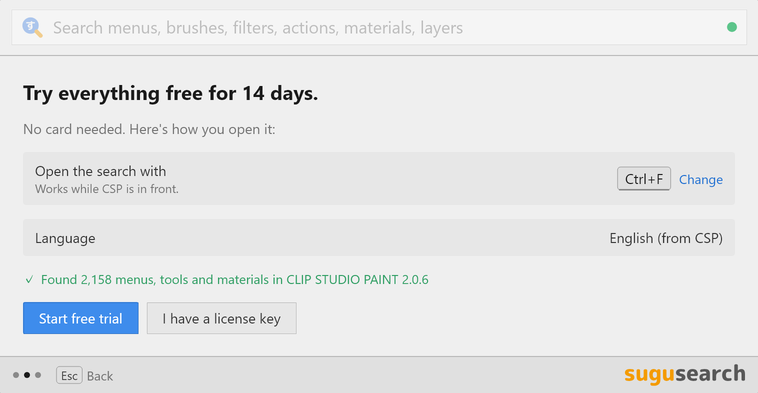
The first time it opens, sugusearch shows you how to open it: Ctrl F⌘ F while CSP is in front. Happy with those keys? Keep them. Rather use others? Click Change and press the keys you like. Then click Start free trial. The trial lasts 14 days and never asks for a card.
Connect to CSP
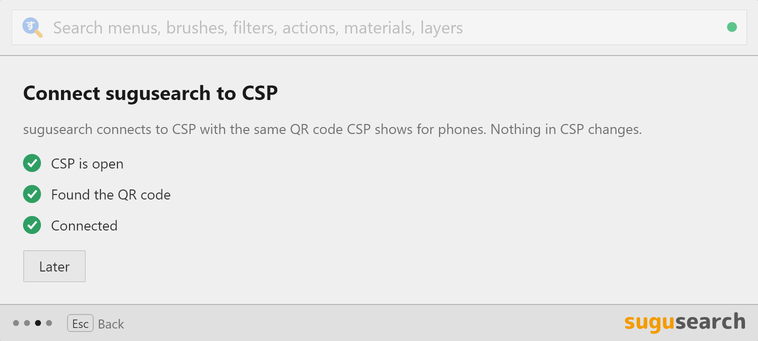
sugusearch connects to CSP with the same QR code CSP shows for phones. Nothing in CSP changes.
- Open CSP.
- Click the phone button in CSP's command bar, just left of the ? button. File > Connect to smartphone works too.
- Leave the QR code on screen until sugusearch says Connected.
One quick restart
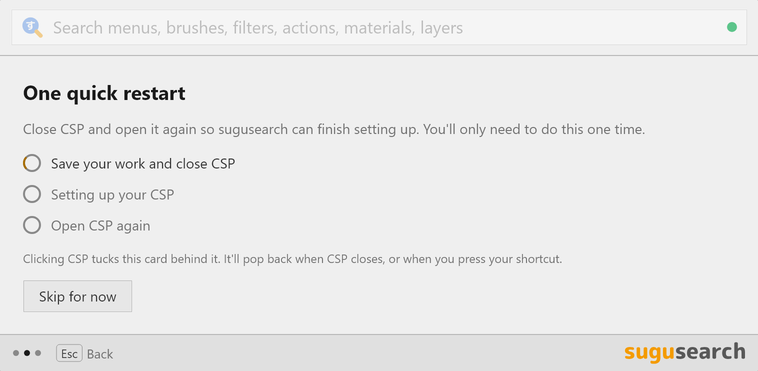
To find and select your layers, sugusearch sets one thing up in CSP. It'll ask you to save your work, close CSP and open it again. You only need to do this once, and you can skip it for now if you're in the middle of something.
Using the box
Open it and type
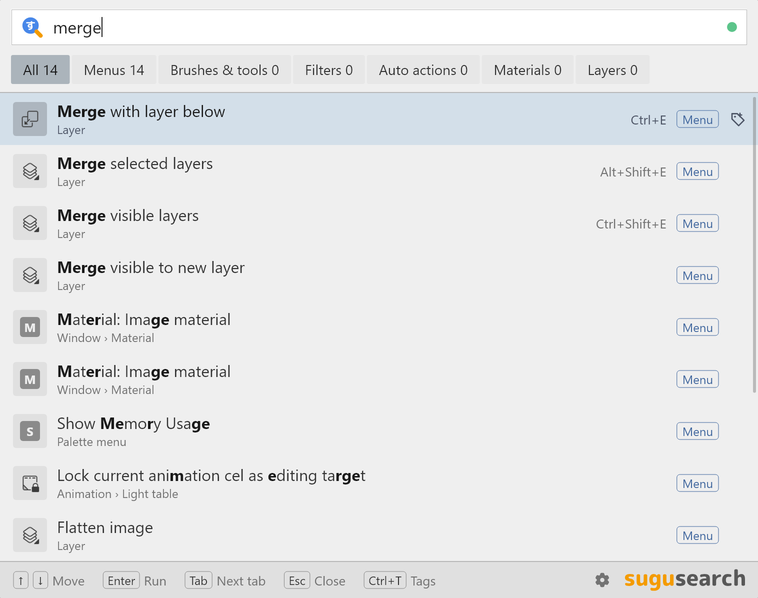
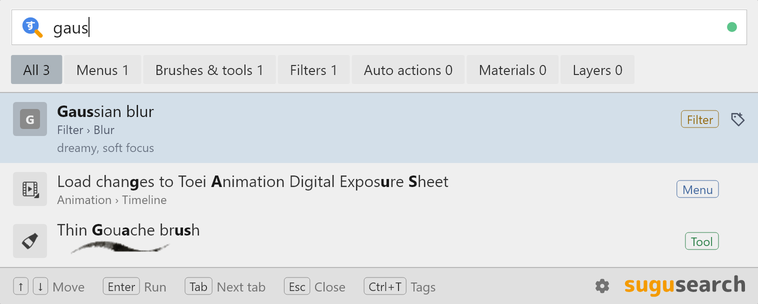
With CSP in front, press Ctrl F⌘ F. Type a few letters of what you want and press Enter. They don't have to be the first letters of the name: line wid finds Adjust line width, and outline sel finds Outline Selection.
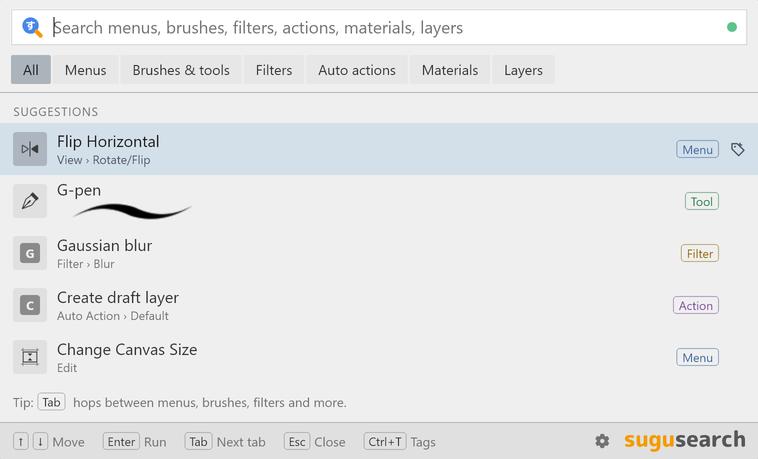
Before you type, the box shows Suggestions, the things you pick most. On a fresh install it starts with a few handy ones.
Keys
| ↑ ↓ | Move up and down the list |
| Enter | Run the selected one (or just click it) |
| Tab | Next tab. Shift+Tab goes back one. |
| Esc | Close the box |
| Ctrl T | Add tags to the selected one |
Tabs
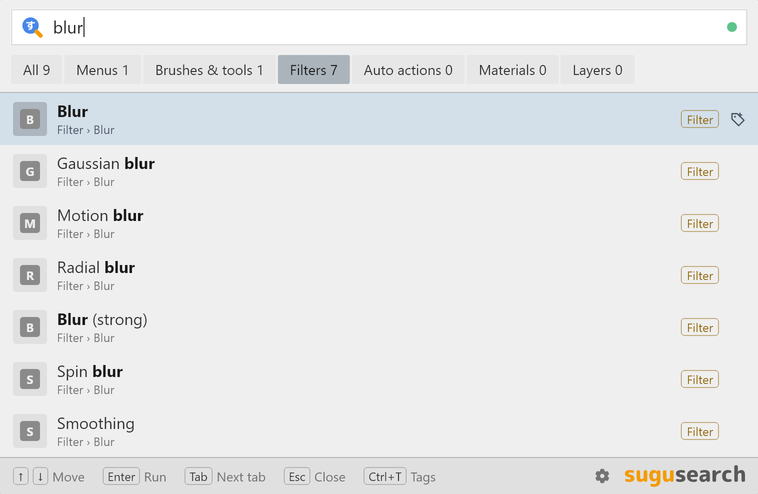
The tabs along the top sort what you find into menus, brushes and tools, filters, auto actions, materials and layers, each with how many it found. Press Tab to hop to the next one.
When you pick something
- Menus and filters run, just as if you'd picked them from CSP's menus. A filter with settings opens its window, like it does in CSP.
- Brushes and tools switch CSP to that tool.
- Auto actions play.
- Materials: sugusearch copies the material's name. Paste it into the Material palette's search box to find it there.
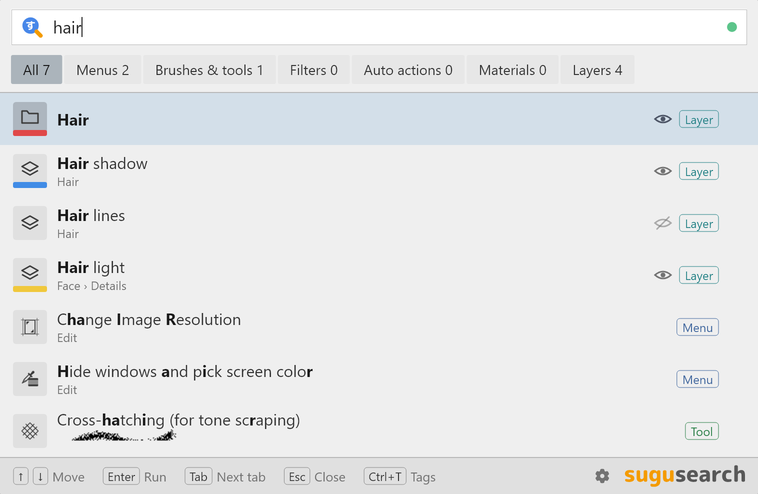
- Layers and folders get selected in CSP. Open a canvas first, and give it about a minute the very first time.
Other languages
sugusearch speaks the same language as your CSP, in all 10 of CSP's languages. English names work in every one of them, so outline sel in a Japanese CSP still finds 選択範囲をフチ取り. Want sugusearch's own words in a different language? Pick one in Settings, under General.
User tags
Add a tag
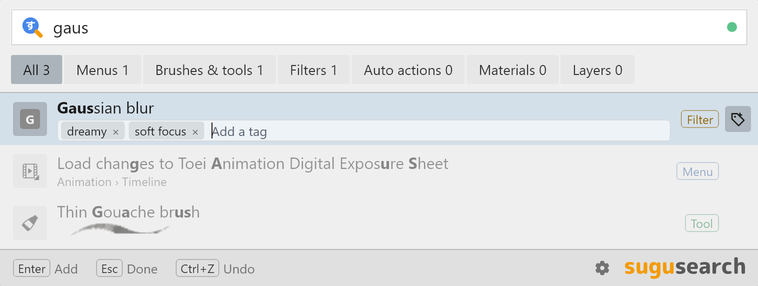
Select a result and press Ctrl T, or click the tag button at the end of its row. Type a word and press Enter. Add as many as you like, then press Esc when you're done.
To remove a tag, hold its × for a moment. Changed your mind? Ctrl+Z brings it back.
Search by tag
Type a tag and everything you gave it shows up. Type a few words, like balloon moonlit, and you'll only get what matches all of them. Each word can match a name, a menu path or a tag. Tags you gave materials in CSP's Material palette count too.
Take them with you
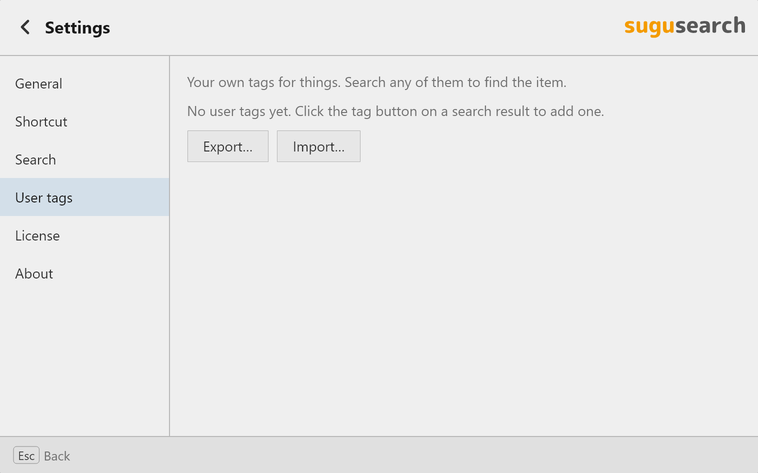
Your tags are kept on your computer. In Settings, under User tags, click Export… to save them to a file. On your other computer, click Import… and pick that file.
Settings
Click the gear at the bottom right of the box, or type settings.
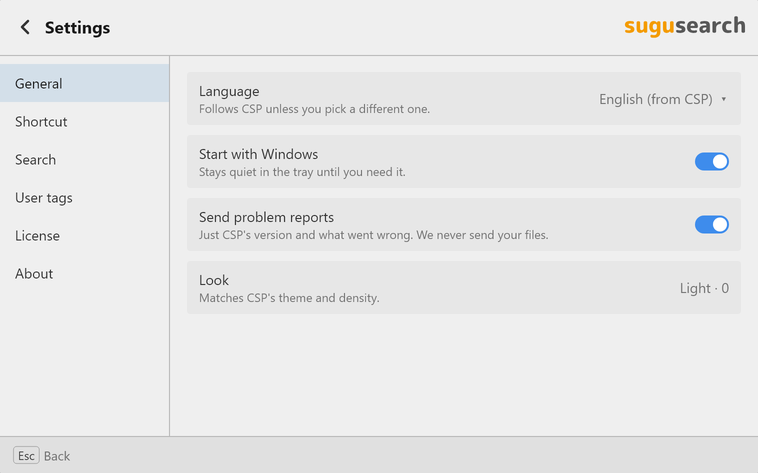
- General: sugusearch's language, starting with Windows (it waits quietly in the tray), sending problem reports, and the look, which follows CSP's theme.
- Shortcut: the keys that open the box.
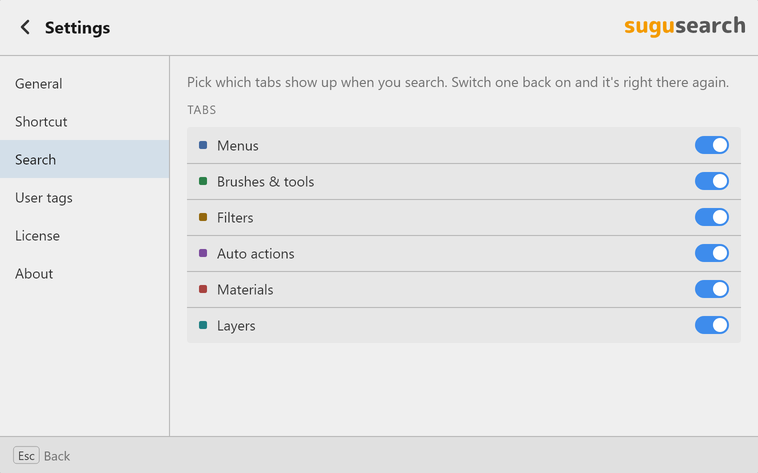
- Search: turn off the tabs you never use. You can also right-click a tab in the box. Switch one back on and it's right there again.
- User tags, License and About.
Troubleshooting
The shortcut only works while CSP is the window in front, so click on CSP first. If another program grabs the same keys, pick different ones in Settings, under Shortcut.
Make sure CSP is open. Then click the phone button in CSP's command bar to show the QR code, and leave it up until sugusearch connects.
CSP can't take commands while a text box or a dialog is open. Finish up there, then try again.
Open a canvas in CSP. The very first time, finding your layers takes about a minute. If sugusearch asks you to restart CSP, close it and open it again once.
This can happen when a layer has the same name as its folder. Renaming one of them should fix it.
That's because sugusearch isn't code-signed yet. Click More info, then Run anyway. The FAQ explains it, and shows how to check your download.
Still stuck? Write to us at hello@sugusearch.com and tell us what you see. We're happy to help.